

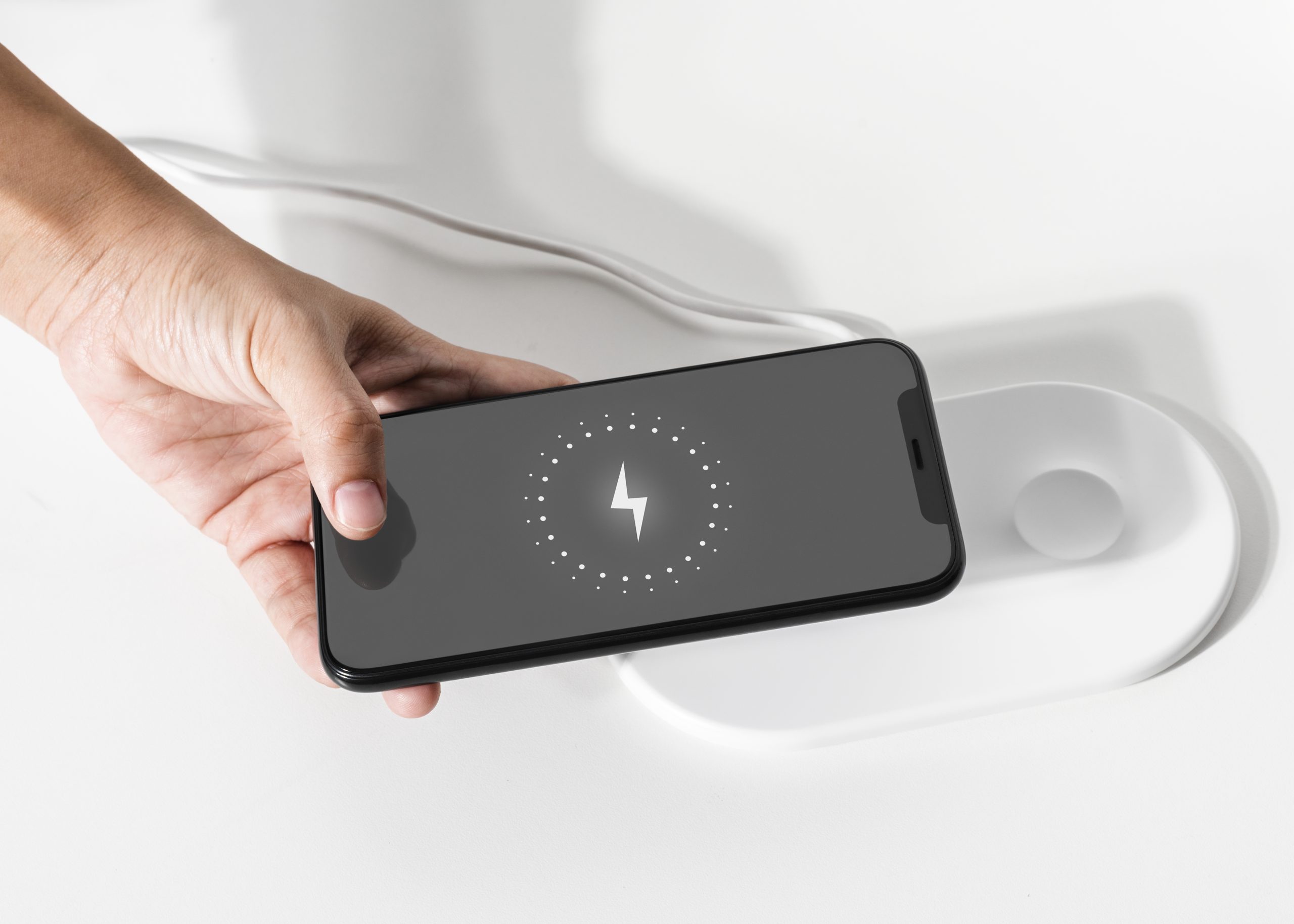
Whether your iPhone is lagging, apps are crashing, or you’re preparing to sell it, knowing the right reset techniques saves time and frustration. This article covers multiple safe ways to reset iPhone, complete with precautions, step-by-step instructions, and post-reset tips.
Why You Might Need to Reset iPhone
iPhones are incredibly reliable, but like any computer, they benefit from occasional maintenance. Common reasons include:
- Persistent software glitches or freezing screens
- Slow performance after years of use
- Battery draining faster than usual
- Forgotten passcode or disabled device
- Preparing the phone for resale or transfer
- Resolving issues after a major iOS update
A proper reset can fix up to 80% of common iPhone problems. Importantly, there are different levels of resetting—from a simple restart that takes 30 seconds to a full factory reset that erases everything. Understanding these differences helps you choose the right approach without losing valuable data.
Important Precautions Before You Reset iPhone
Before attempting any reset, protect your information:
- Back up your data — Use iCloud (Settings > [Your Name] > iCloud > iCloud Backup) or connect to a computer and use Finder (Mac) or iTunes (Windows).
- Charge your iPhone — Ensure at least 50% battery or keep it plugged in.
- Know your Apple ID password — You’ll need it for activation lock after a factory reset.
- Update iOS if possible — Sometimes issues resolve with the latest software.
- Remove SIM card if you’re selling the device or troubleshooting network issues.
Taking these steps ensures the reset iPhone process goes smoothly and your data remains safe.
Method 1: Soft Reset (Restart) – The Quickest Fix
A soft reset is the gentlest way to reset iPhone. It clears temporary memory without deleting any apps or files.
For iPhone 8 and newer (including iPhone 16 series):
- Quickly press and release the Volume Up button
- Quickly press and release the Volume Down button
- Press and hold the Side button until the Apple logo appears (about 10-20 seconds)
For iPhone 7:
- Press and hold both the Volume Down and Side buttons until the Apple logo shows.
For iPhone 6s and older:
- Press and hold the Home button and Side (or Top) button together.
This process usually takes under a minute. Many users find that a simple soft reset solves minor freezing or lagging issues instantly. Perform this weekly as preventive maintenance.
Method 2: Force Restart When iPhone is Frozen
When your iPhone is completely unresponsive, a force restart is necessary. This is still safe and doesn’t erase data.
Follow the same button combinations as the soft reset above, but continue holding until the Apple logo appears even if the screen goes black temporarily. Force restarting is particularly useful after a failed app install or when the device overheats.
Method 3: Reset All Settings (Without Losing Data)
This excellent middle-ground option resets iPhone settings while keeping all your photos, apps, and files intact.
Steps:
- Open Settings
- Go to General
- Scroll down and tap Transfer or Reset iPhone
- Tap Reset
- Choose Reset All Settings
You’ll need to re-enter Wi-Fi passwords and adjust preferences afterward, but your data stays safe. This method fixes many network, display, and notification problems.
Method 4: Factory Reset (Erase All Content and Settings)
When you need a completely fresh start, a factory reset is the way to go. This fully wipes the device and returns it to its original state.
Through Settings (Easiest Method):
- Go to Settings > General > Transfer or Reset iPhone
- Tap Erase All Content and Settings
- Enter your passcode and Apple ID password if prompted
- Confirm the action
The process can take 5-15 minutes depending on storage size. Your iPhone will restart looking like it just came out of the box.
Note: Always back up first. After erasing, you can restore from backup during setup.
Method 5: Reset iPhone Using a Computer (Recovery Mode)
If your iPhone won’t turn on properly or you forgot your passcode, use a computer.
Steps:
- Connect your iPhone to a Mac or PC with a cable
- Put the device into Recovery Mode (button combinations vary by model—similar to force restart but different timing)
- On your computer, open Finder or iTunes
- Choose Restore when prompted
This method reinstalls iOS and can fix deeper software issues. It typically takes 15-30 minutes.
Advanced Option: DFU Mode Reset
Device Firmware Update (DFU) mode is the deepest reset level for severe problems. It’s more technical but powerful for issues that Recovery Mode can’t fix. Instructions vary slightly by model, so follow precise timing for volume and side buttons. Only use DFU when other methods fail.
Common Issues and Troubleshooting During Reset
- Reset taking too long? Keep the device plugged in and be patient—large storage capacities take more time.
- Apple ID password forgotten? Use iforgot.apple.com to recover it before starting.
- “iPhone is disabled” message? A computer-based reset is usually required.
- Stuck on Apple logo? Force restart multiple times or enter Recovery Mode.
- Error codes during computer reset? Update your computer’s iTunes/Finder and try a different cable.
Most users successfully reset iPhone on their first or second attempt when following these steps carefully.
After Reset: Setting Up Your iPhone Like a Pro
Once your device restarts:
- Follow the on-screen Hello setup wizard
- Connect to Wi-Fi
- Restore from iCloud or computer backup
- Sign in with Apple ID
- Re-download apps from the App Store (they’ll remember your login in many cases)
Take time to re-organize your Home Screen and adjust settings for optimal performance. Consider enabling automatic iCloud backups going forward.
Tips to Keep Your iPhone Running Smoothly
- Regularly offload unused apps
- Clear Safari cache and website data monthly
- Update apps and iOS promptly
- Avoid jailbreaking, which can cause instability
- Use optimized battery charging
- Monitor storage in Settings > General > iPhone Storage
By maintaining good habits, you’ll need to fully reset iPhone less frequently.
When to Seek Professional Help
If none of these methods work, there might be a hardware issue. Visit an Apple Store or authorized service provider. They can run diagnostics and determine if a reset isn’t enough.
Conclusion
Mastering how to reset iPhone empowers you to solve most software problems quickly and confidently. From a 30-second soft reset to a complete factory wipe, these methods give beginners powerful tools to maintain their devices. Remember to always back up your data first, and don’t hesitate to use the gentlest method that solves your specific issue.
With this guide, you can now reset iPhone in minutes whenever needed. Your device will thank you with improved speed and reliability. Share this article with friends and family who struggle with iPhone performance issues—they’ll appreciate the clear, step-by-step instructions.
Keep this guide bookmarked for future reference. A well-maintained iPhone can easily last many years, providing excellent value and performance throughout its life. Happy resetting!











Leave a Reply